

Skip the line. Save your time.
How will you use Linyamo?
Secure • Private by design » Free for clinics, banks, markets & every business
Resume
Join a line
Scan the business QR code, or type the code printed under it.
Missed your turn?
You missed your turn — want to rejoin the line?
You'll get a brand-new number at the back of the line.
No problem! 👋
You're out of the line. Come back anytime — we'll be here.
How was your visit?
Tap a star — that's it.
Thanks for the feedback! ⭐
Live
For businesses
Start a queue now
No account needed. Get a QR code in seconds.
Already set up? Open my console
Business account
Create your business account. You can start your queue right after.
Set up your queue
- Name
- Address
- Type
- Hours
What's your business name?
Where is your business?
Customers see this on your page so they can find you.
What kind of business?
Opening hours
🧾 Live line
⚙️ ManageNow serving
Waiting (0)
Business console
⚠️ Please verify your email — check your inbox for the verification link. Resend
🧾 Open live line📱 Today's QR code
…
🔒 Keep-same QR is available with a business account. Create one.
⚠️ Anyone with this code can join your queue remotely at any time. Keep it in a secure spot.
Saved ✓
Saved ✓
Ratings
📊 View Insights📊 Insights
← Back to Manage🔒 History is available with a business account. Create one.
🔒 Statistics are available with a business account. Create one.
Customers per day
Busiest hours
Wait times
🛡️ Platform Admin internal
Admin sign-in
Enter the platform admin token. It was printed on the server console at startup
(or set via the LINESKIP_ADMIN_TOKEN env var).
| Name | Type | City | Acct | Waiting | Served | Created |
|---|
Placeholders stay labeled — no real ad code is rendered. The AdSense client ID is stored for future use.
Saved ✓
Saved ✓
Terms of Service
Loading…
About Linyamo
Tired of waiting in line? Linyamo is the free queueing app for every business — clinics, banks, markets, salons, restaurants and more. Scan the QR code to join the line from your phone, then go about your day. Get live wait-time updates and an instant alert when your turn is almost up. No app download, no signup, no fees.
Skip the line. Save your time.
Why Linyamo exists
Linyamo was born in a clinic waiting room. Its founder spent countless hours there, watching the minutes crawl by — and decided no one should have to wait like that.
So he built Linyamo: scan the code, keep your spot, and get your time back.
What's in a name?
Linyamo comes from the Bisaya (Cebuano) phrase "linya mo" — meaning "your line" or "that's your line."
Because that's what it is: your line, on your terms. No waiting room required.
How it works
- Scan the daily QR code at the business.
- Your spot is saved instantly — no app download or account needed.
- Go about your day — we'll notify you when your turn is near.
For businesses
Start a queue instantly with no account required. Optional free accounts save your settings, history and statistics.
Built by Four L Ltd.
📖 Help Center
Guides to help you get the most out of Linyamo.
📱 Customer Guide
How to join a line, watch your ticket, and get notified when it's your turn.
🏢 Business Guide
How to open your line, share your QR code, call customers, and manage breaks.
🔔 Notification Setup
Step-by-step guide to making sure you never miss your turn.
🏢 Business Guide
How to run your queue with Linyamo.
Step 1: Open your live line
Go to Live line from the menu. Tap Open live line to start accepting customers.
Your QR code is shown here — customers scan it to join.
Step 2: Share your QR code
Print your QR code and put it where customers can see it — on the door, at the counter, or on a table.
From Manage business, you can download a printable door poster.
Tip: You can keep the same QR code every day (enable "Keep same QR code" in settings) so you only print once.
Step 3: Call the next customer
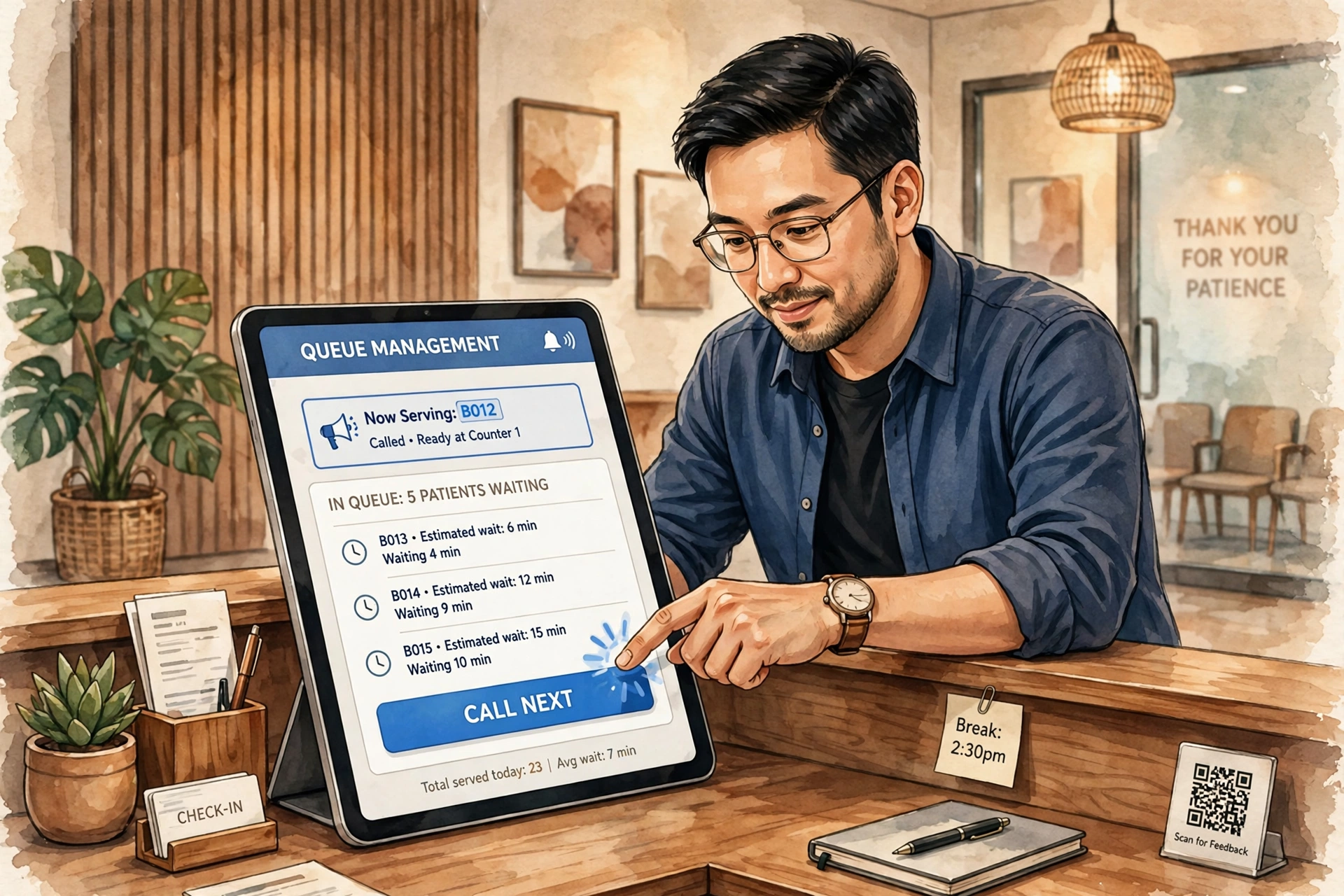
When you're ready for the next person, tap 📢 Call next. The next customer in line is notified.
You can also add walk-ins manually if someone doesn't have a phone.
Step 4: Manage your line
- ⏸ Stop accepting — temporarily block new joins (e.g., you're catching up).
- 🍽 Lunch break — pause for a break. Set daily break hours in Line settings to automate this.
- 🌙 End today's line — close the queue when you're done for the day.
Step 5: Check your insights
Go to Insights to see statistics, waiting times, and how your line is performing.
Display screen
Put a tablet or TV on the Display page (#/display) to show the current number being served. Great for waiting areas.
📱 Customer Guide
How to skip the line with Linyamo.
Step 1: Scan the QR code
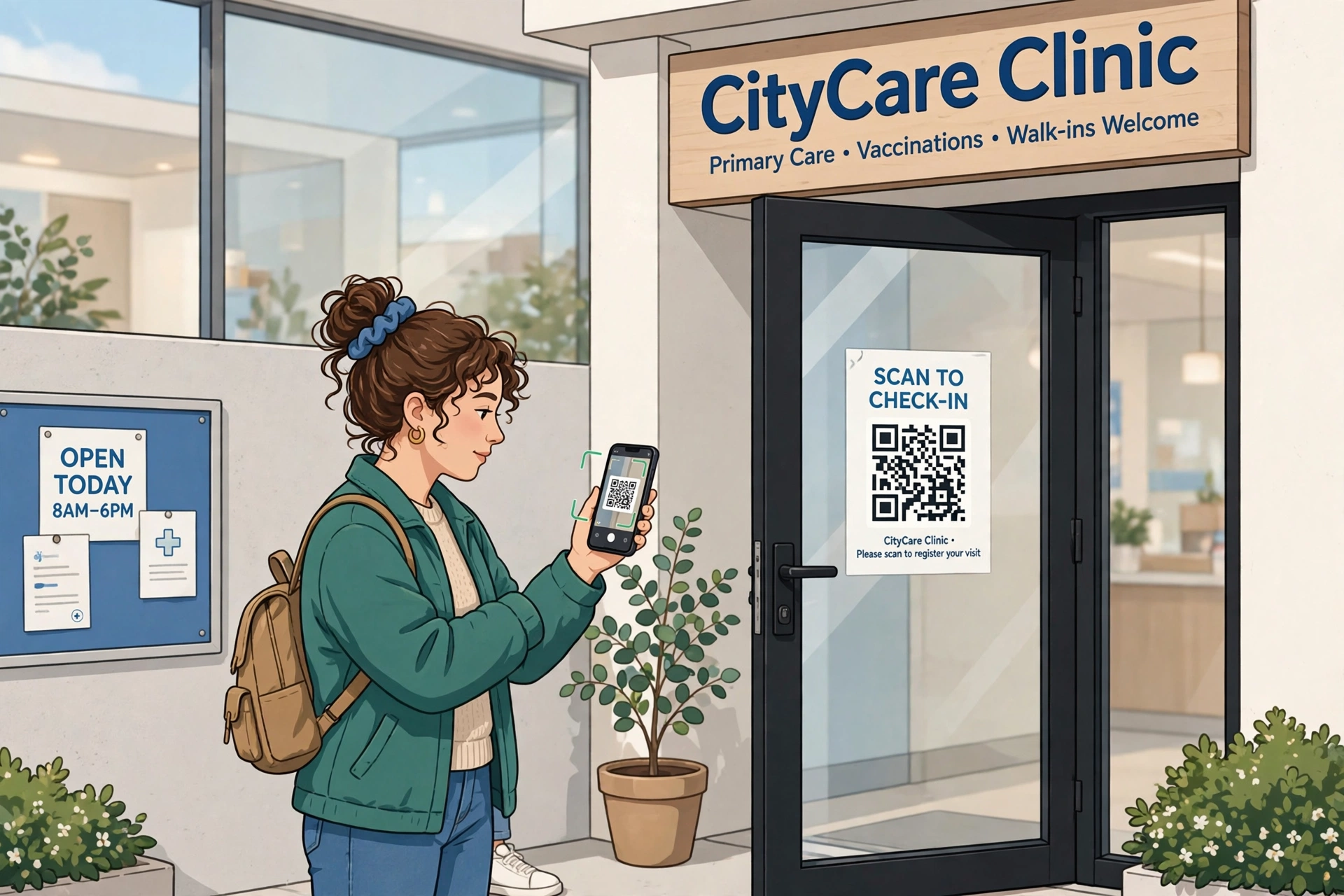
At the business, look for the Linyamo QR code (usually on the door or counter). Scan it with your phone camera.
No app download needed — it opens right in your browser.
Step 2: Join the line
You'll see the business name, logo, and address. Tap Join this line.
Your spot is saved instantly. You'll get a ticket number.
Step 3: Watch your ticket
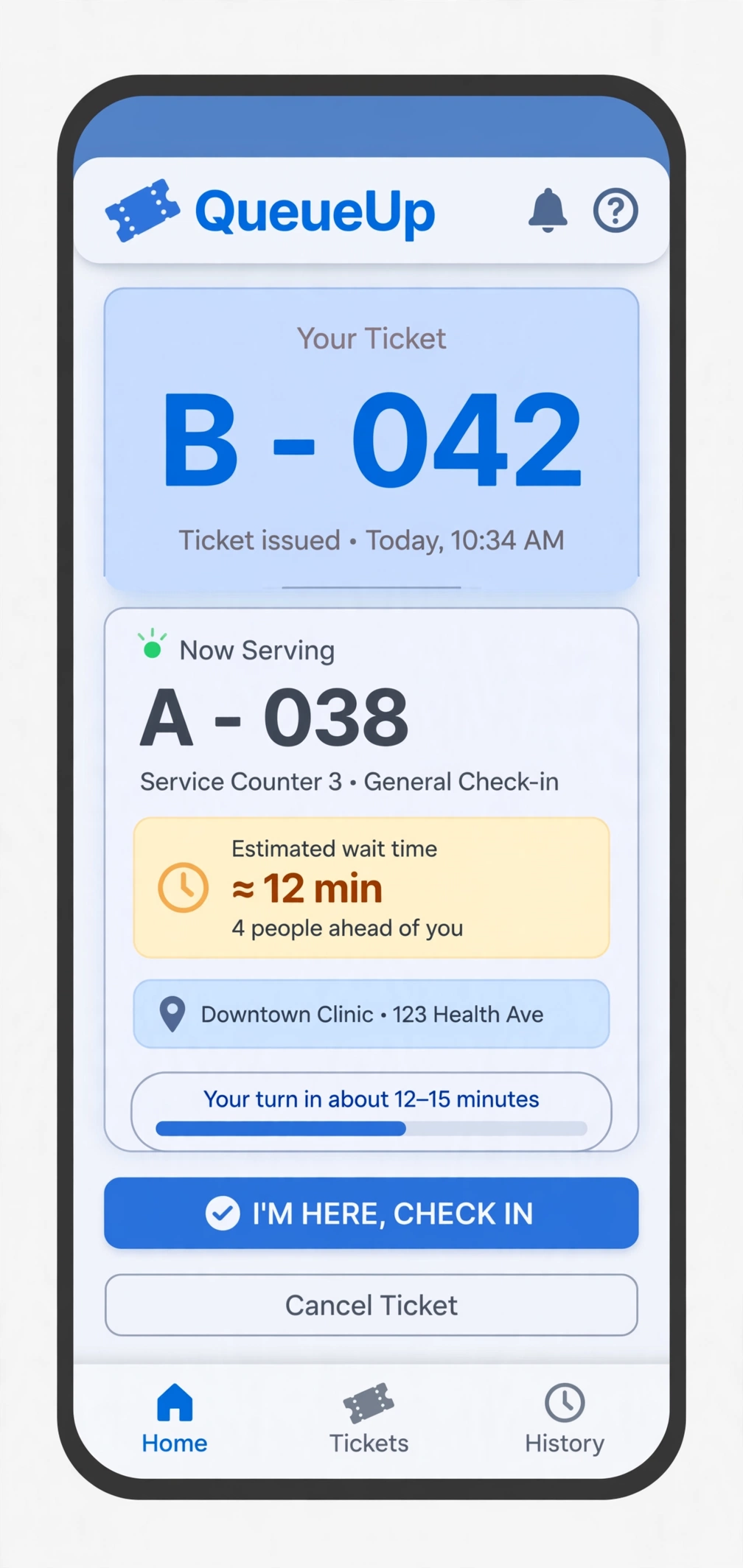
Your ticket shows:
- Now serving — the number currently being helped.
- Your number — your spot in line.
- Ahead of you — how many people are before you.
- Est. wait — how long until your turn.
The page updates automatically — no need to refresh.
Step 4: Get notified
When your turn is near, we'll alert you. Set up notifications to make sure you don't miss it.
You can also set "Notify me when I'm X spots away" on your ticket for extra warning.
Step 5: Go when called
When it's your turn, head to the counter. That's it!
Changed your mind? Tap Leave line on your ticket to give up your spot.
🔔 Getting Notifications
Follow these steps to make sure you never miss your turn.
Step 1: Allow notifications
Your browser needs permission to send you alerts when the screen is off.
- Open linyamo.com in Chrome.
- Tap the 🔒 lock icon left of the address bar.
- Tap Permissions (or Site settings).
- Tap Notifications → Allow.
Step 2: Refresh your ticket
After allowing notifications, close and reopen your ticket page. This connects your phone to our notification service.
Step 3: Customize your alerts
Go to Settings to choose how you want to be alerted:
- 📳 Vibration — your phone buzzes when your turn is near.
- 🔊 Sound — plays a chime.
- ⚡ Flash screen — flashes the screen.
ℹ️ Keep this page open for these alerts to work. To get notified with the screen off, allow notifications for this site in your browser.
Tap Test alerts on the Settings page to try them out.
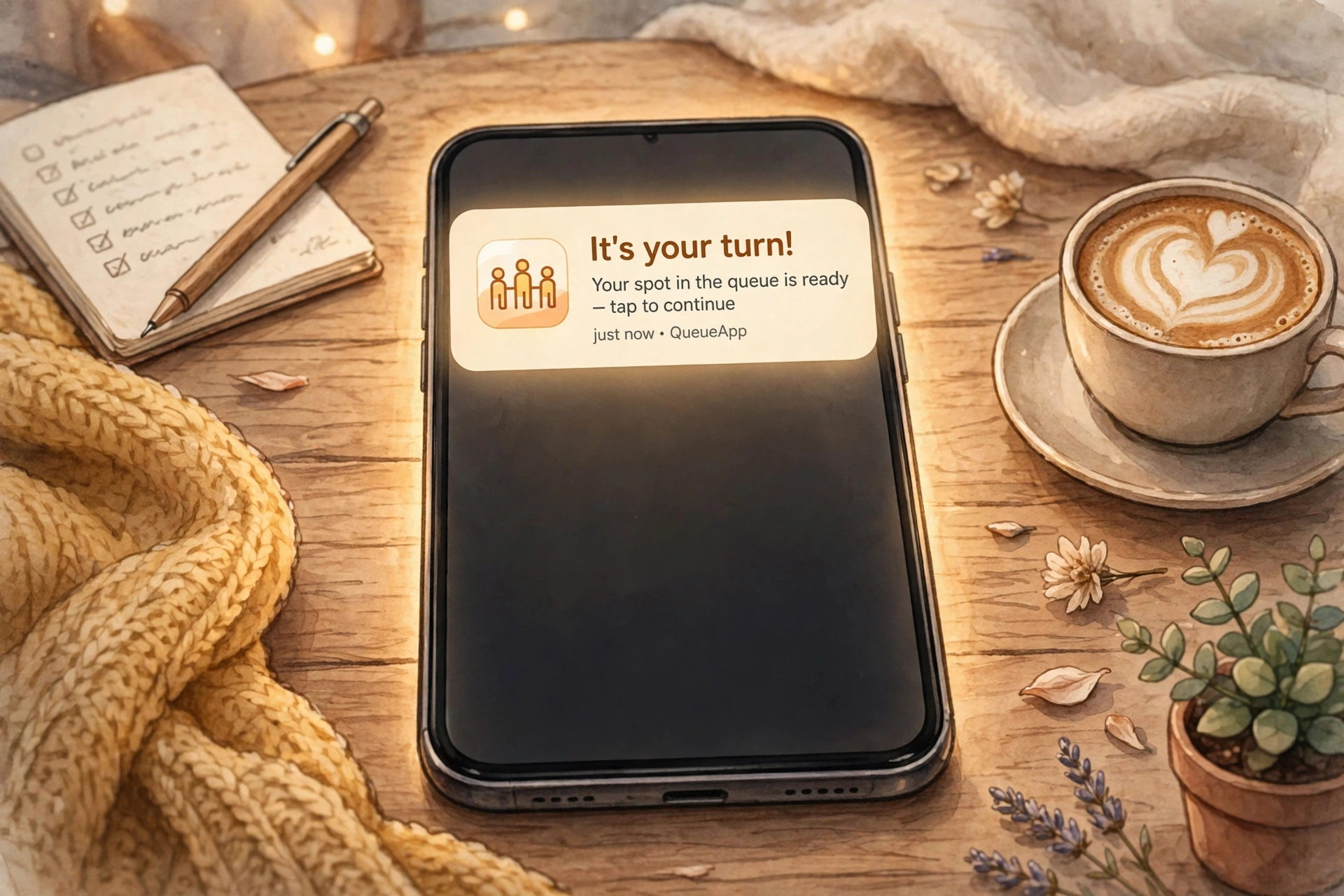
What you'll get
- When you're almost up — a heads-up to start heading over.
- When it's your turn — an alert to go to the counter.
Notifications work even with the screen off, as long as you've allowed them in Step 1.
Contact us
Questions, feedback, or need help? We'd love to hear from you.
Email: Linyamo Support
⚙️ Settings
🔔 Turn alerts
Choose how Linyamo alerts you when your turn is near.
🔔 Notify me when I'm X spots away
ℹ️ Keep this page open for these alerts to work. To get notified with the screen off, allow notifications for this site in your browser.