

 Linyamo
Skip the line. Save your time.
 ⚡ Join a line
⏱ Live wait times
💬 Ask me anything
How will you use Linyamo?
Secure • Private by design » Free to use for clinics, salons, restaurants, banks & public services — and one-day lines for events, school concerts & one-day sales
Resume
Join a line
Scan the business QR code, or type the code printed under it.
Live
Missed your turn?
You missed your turn — want to rejoin the line?
You'll get a brand-new number at the back of the line.
No problem! 👋
You're out of the line. Come back anytime — we'll be here.
How was your visit?
Tap a star — that's it.
Thanks for the feedback! ⭐
Floats a small window over your other apps while you wait. Close it any time — your place in line stays yours.
For businesses
Start a queue now
No account needed. Get a QR code in seconds.
Create your free account
No credit card. No expiry.
- QR code your way — keep the same one, or a fresh code every day
- Appointment book — bookings up to 2 weeks ahead
- History & statistics — see your busiest times
- Staff, services & settings saved for next time
- Sign in on any device — your business travels with you
Already set up? Open my console
Google sign-in
Signing you in with Google…
Business account
Two-factor authentication
Enter the 6-digit code from your authenticator app.
Connect Google to your account
We emailed a 6-digit code to . Enter it to connect this Google account and sign in.
This email has no Linyamo account yet.
You signed in with Google as , but there is no Linyamo account for that email. You can create one with this Google account, or go back and sign in with an email that already has an account.
Staff sign in here too — with the email your owner added for you. You'll land on your staff home.
Create your business account. You can start your queue right after.
Google confirms your name and email. Then Linyamo asks only for your business name, type, and Terms.
Almost done — Google confirmed who you are. Tell us about your business:
Verify your email
We sent a verification link to your email. Click the link in that email to verify your account.
You can't continue until your email is verified.
Forgot password
Enter your account email and we'll send you a reset link.
Check your email for the reset link. It expires in 1 hour. Didn't get it? Check spam, or tap "Send reset link" again.
Set a new password
Password updated! Sign in
Set up your queue
- Name
- Type
- Address
- Hours
✓
What's your business name?
What kind of business?
Where is your business?
Customers see this on your page so they can find you.
Opening hours
Q Live line
⚙️ ManageNow serving
Waiting (0)
One tap — no name needed.
🖨️ Printer ready
🚶 Walk-in queue — 0
First come, first served.
+ Add walk-in
📖 Appointments — 0
Today's bookings.
Separate from the live line — check patients in or mark no-shows as they come.
Appointment confirmed
Patient:
Date:
Time:
Doctor:
Reason:
🔔 Get free reminders
We'll send you a confirmation now, plus reminders 24 hours and 2 hours before your visit. Free — no SMS, just a notification on this device.
✅ Reminders on! You'll get notified before your visit.
📅 Appointments
Today's schedule — check patients in or mark no-shows. This is separate from the live line; appointments are never numbered.
📅 Calendar
Booking opens 2 weeks ahead — locked dates are beyond that window.
⚙️ Appointment Settings
›+ Add appointment
📊 Daily planner
🏦 Bank Appointments
Today's schedule — check clients in or mark no-shows. This is separate from the live line; appointments are never numbered.
📅 Calendar
Booking opens 2 weeks ahead — locked dates are beyond that window.
⚙️ Appointment Settings
›+ Add appointment
📊 Daily planner
Online reservations aren't available here
This restaurant isn't taking online reservations right now. Please call them to book a table.
Reserve a table
No account needed — takes less than a minute.
Day › Time & Guests › Details › Confirm
Pick a day
Your details
Check & confirm
No account needed — the restaurant sees your booking right away.
Reservation received
Your confirmation number
Show this code or give your name when you arrive.
📖 Reservations
Reservations — seat guests or mark no-shows. Separate from the live line.
Booking opens 2 weeks ahead — locked dates are beyond that window.
+ Add reservation
Restaurant settings
Your reservation page
Online reservations are always on — share your link or print the poster. Bookings land in your list and we email you.
✓ Your QR code stays the same — this poster won't change.
⚠️ Your Profile has no phone number — big parties are told to call you. Add your number in Profile so they can reach you.
Your choice: guests see your real menu prices on your reservation page and when they ask Lexi — or every price shows as xx.xx. Your menu stays listed either way, Lexi still knows the real prices, and you always see them. The same switch as everywhere on Linyamo — one switch per business.
Saved ✓
Your page's photos
Your background photo is the first thing guests see.
More photos (up to 3, shown under your welcome message)
Closing dates
Your opening hours live on the Profile page — a closing date here overrides them for that day.
Dining room
Tables set aside for reservations. The rest of your dining room stays for walk-ins.
For bigger parties, two tables can be joined — a 4 and a 6 together seat 10.
Your tables are numbered in order, top row first — bookings are placed on them automatically.
Bigger parties are asked to call the restaurant instead.
Allergy warning
💈 Book an appointment
Scan the business's QR code, or type the code printed under it.
Select a service
Tap every service you want — they run one after another in a single visit, even with different staff.
Select a staff member
Pick a date
Day
Appointment Summary
Your information
The salon may call you about this booking. Your confirmation is emailed to you.
Cancellation & no-show policy
Customers who miss an appointment without notice (a no-show) may be asked to book by phone next time, or may be declined future online bookings, at the salon's discretion.
You're booked!
Take a screenshot of this confirmation and show this screen when you arrive.
POWERED BY LINYAMO
Available times
🚶 Join the walk-in queue
Scan the business's walk-in QR code, or type the code printed under it.
Join the walk-in queue
This salon has not listed services yet - just tell the staff when you arrive.
You're in line!
✓ You replied 👍
🔔 Notify me
We'll ping you when your turn is near — even if you leave this page.
💈 Appointment book
Bookings and the daily planner.
📅 Calendar
+ Add appointment
For phone-in customers — the same step-by-step flow as online booking, in a popup.
✏️ Edit appointment
📊 Daily planner
✂️ Service Settings
Your bookable service menu — customers see this when booking.
👥 Employees
Add your team first — when you add a service below, you choose which employees can do it. They also appear in the booking page picker.
🔒 5 employees max in V1 — unlimited in Version 2.0
Saved ✓
📷 From your photo — check before saving
A scan can misread a line. Check every name and price, fix anything, then tap Save services. Nothing here is live until you save — the list below does not change, and Lexi cannot see a draft. Price lists rarely print how long a service takes, so each new line starts at 30 min — marked DEFAULT — CHECK until you set the real time.
No lines yet — add a photo of your price list, or add a line by hand.
Customer prices
Your choice: customers see your real prices when they book and in their confirmation emails — or every price shows as xx.xx. Your services stay listed either way, and you always see the real prices here.
Saved ✓
Tax and other charges
Added on top of your service prices. Customers see each charge and the new total on the confirmation page and in their confirmation email.
Saved ✓
Discounts
Only you can add a discount — inside this app, when you book or edit an appointment. Customers never see a discount field. Turn this off and no discount can be added anywhere.
Saved ✓
Appointment reminders
The day before an appointment, customers who booked with an email get a reminder with their service, time, and your phone number — so they can still call in time to cancel or move it.
Saved ✓
Cancellation policy
Shown on your booking page. Customers must agree to it before they can book.
Saved ✓
+ Add service
Leave all unchecked and every employee can take this service. Check names and bookings + walk-in auto-assign will only use those employees.
🗓️ Employee schedule
Set each employee's working hours. Customers can only book inside these blocks.
🗓 Schedules
Set the shifts your business runs, then make each week's schedule by date. Weeks you haven't made stay blank — and blank days book at shop hours.
🔒 Pro feature. Schedules is part of Linyamo Pro. On the free plan your team keeps the simple Custom hours below — this page shows what Pro adds.
🕐 Shift presets
Define the shifts once — every schedule is built from these. Editing a preset changes future bookings' windows; shifts already assigned keep working from the same preset.
📅 Assign shifts
Tap a day to edit it — set the shift, mark an absence, or record the hours actually worked. A blank day isn't scheduled — it books at shop hours.
🖨 Print the week
One week on a US Letter sheet, landscape — made for the staff-room wall.
🎉 Holidays
Preset holidays for your country — set each one Open (shifts assign as usual) or Closed (nobody can book that day). Movable feasts (like Eid or Chinese New Year) can be added by hand below.
🌴 Vacations
Each employee's vacation days for the year. On a vacation day that employee can't be booked, whatever their schedule says.
📅 Schedule
Read-only — to change the schedule, use Schedules.
🔔 Booking alerts
Appointments affected by schedule changes. Nothing is sent to customers automatically — you pick the fix.
💰 Sales & Revenue
🔒 Pro feature. Sales & Revenue is part of Linyamo Pro — see what the shop earns, what it spends, and what tax it owes.
🏛 Taxes — not your money
Tax payments are logged on the Ledger page — a payment lowers what's owing here. It never counts as an expense or as income.
📒 Ledger
🔒 Pro feature. The Ledger is part of Linyamo Pro — record the money in and out, day by day.
Entries
Where the money went
🔐 Security
Two-factor authentication (2FA) protects your owner account: signing in on a new device asks for a 6-digit code from an authenticator app, on top of your password.
Two-factor authentication is OFF
Your account is protected by your password only. Turn 2FA on and a stolen password alone won't be enough to get in.
Set up your authenticator
1 · Open your authenticator app (Google Authenticator, Microsoft Authenticator, Authy…) and scan this code:
Can't scan? Type this setup key into the app:
2 · Enter the 6-digit code the app shows:
Save your backup codes
Shown once. Each code works one time if you lose your authenticator. Treat them like spare keys.
Two-factor authentication is ON ✓
New devices will ask for a code. Devices you trust stay signed in for 30 days.
Get fresh backup codes (needs a current code — old codes stop working):
Turn 2FA off (needs a current code or your account password):
Google sign-in
Checking…
🏠 Dashboard
⚠️ Please verify your email — check your inbox for the verification link. Resend
Q Open live line📱 Today's QR code
…
🔒 Keep-same QR is available with a business account. Create one.
⚠️ Anyone with this code can join your queue remotely at any time. Keep it in a secure spot.
Saved ✓
🖨️ Printer
Prints a paper ticket when you add someone at the desk.
Saved on this device only — other devices at this business are not affected.
Ratings
📊 View InsightsSet your password
Your email is verified by this link. Choose the password you'll log in with — 8+ characters, with an uppercase letter, a lowercase letter and a number.
This link can't be used
Ask the owner to resend your invite — a fresh link will come to your email.
👥 Staff home
Loading…
Profile
A wide photo of your shop, shown behind your name and address on your booking page. e.g. your storefront or your chairs.
Saved ✓
🕘 Week hours
The hours you are open each day. Bookings and reservations follow them — a closed day takes none. Staff with their own shift schedule follow that instead.
Saved ✓
⚠️
Deletes your business and all its data permanently.
📊 Insights
← Back to Manage🔒 History is available with a business account. Create one.
🔒 Statistics are available with a business account. Create one.
Customers per day
Busiest hours
Wait times
🛡️ Platform Admin internal
Admin sign-in
Enter the platform admin token.
🔑 Admin door password
The password on the /admin door, like the Studio's. Changing it locks every other browser out of the door — they'll need the new password to get in.
Door password changed. This browser stays in; every other browser is locked out.
| Name | Type | City | Acct | Waiting | Served | Created | Plan |
|---|
Questions Lexi couldn't answer, and answers flagged with the Wrong A code. Teach her, then mark them taught.
Placeholders stay labeled — no real ad code is rendered. The AdSense client ID is stored for future use.
Saved ✓
Shut: every Docks surface — gate check-in, the desk, driver tickets, the public yard card — answers 404 to everyone except your own accounts signed in as owner. Yard data stays saved behind the gate.
Saved ✓
Terms of Service
Loading…
Privacy Policy
Effective: October 5, 2026
1. What we collect
Customers (no account needed): the name you enter, your ticket number and position, your notification preferences (vibration, sound, flash), and technical data your browser shares automatically (device type, browser version). If you allow push notifications, we store a push subscription so we can alert you when your turn is near.
Business owners (optional account): your email address, business profile details (name, address, hours, logo), line settings, and queue history/statistics. Owners who use Google sign-in share their name, email, and Google account ID with Linyamo via Google; Linyamo never receives their Google password.
We do not sell your personal data.
2. How we use it
To operate the queue: hold your spot, estimate wait times, send turn alerts, and show businesses their line statistics. Business owners can see customer names and ticket details for lines they operate.
3. Advertising and cookies
Linyamo is free because it is supported by advertising. We use Google AdSense to display ads.
Google's use of advertising cookies enables it and its partners to serve ads based on your prior visits to this site and/or other sites on the Internet. Specifically:
- Third-party vendors, including Google, use cookies to serve ads based on your prior visits to linyamo.com and other websites.
- Google's use of advertising cookies enables it and its partners to serve ads to you based on your visit to this site and/or other sites on the Internet.
- You may opt out of personalized advertising by visiting Google's Ads Settings.
- Alternatively, you can opt out of some third-party vendors' use of cookies for personalized advertising by visiting aboutads.info/choices.
You can also control cookies through your browser settings. Blocking cookies may affect some site features (such as remembering your ticket).
4. Data retention
Queue tickets are kept for the business's records and statistics. You may ask a business to remove your entry. Account holders may request deletion of their account data via the support contact below.
5. Contact
For privacy questions: Linyamo Support (see the Contact page).
6. Changes
We may update this policy. Material changes will be noted here with a new effective date.
Help — Questions & answers
No questions match that word. Try another word — or email contact@linyamo.com.
Contents
📱 Customer Guide
How to join a line, watch your ticket, and get notified when it's your turn.
🏢 Business Guide
How to open your line, share your QR code, call customers, and manage breaks.
🔔 Notification Setup
Step-by-step guide to making sure you never miss your turn.
Joining a line
What is Linyamo?
Linyamo is a free online line. Instead of standing in a physical line, you join from your phone, go about your day, and get alerted when your turn is near.
How do I join a line?
Scan the QR code at the business — or type the code if your camera can't. Check the business name, type your name, and tap Join. Your spot is saved. That's it.
Do I need to download an app or make an account?
No. Joining opens in your phone's web browser. No download, no account, and no fees — ever, for customers.
Why do I need to give my name?
So the business can call you by name. A ticket with no name can't be matched to the person standing at the counter.
How will I know it's my turn?
Your ticket page shows the number now being served, your number, and the estimated wait — updating live. Allow notifications and Linyamo pings you when you're close: always at 1 spot away, and again when it's your turn. You can also set your own warning distance on the ticket page.
I don't have a smartphone. Can I still get a number?
Yes. Ask at the desk — the business can add you to the same line, and hand you a paper ticket if they use a printer. Your number is called like everyone else's.
Can I leave the line?
Yes — tap Leave line on your ticket. It asks you to confirm, so a stray tap can't drop your spot.
What if I miss my turn?
Talk to the business. They may serve you when you arrive or add you again — it's their call, and most are happy to help if you weren't far away.
Take the short tour — Lexi walks you around
New here? Take the short tour: Lexi, the assistant in the corner, walks you around Linyamo in three quick stops — a guided tour (a little walkthrough, if you like) of joining a line, the For businesses page, and creating an account. Whenever you want to look around with a guide, tap the button below and she'll show you around — or just ask her for the tour. The guided walk takes under a minute, and you can stop it any time.
Appointments & reservations
How do I book an appointment?
Open the business's booking page (their link or QR code), pick a day, pick a time, add your name and phone number, then tap Confirm Appointment. You'll get a confirmation number — keep it.
Do I get a reminder?
If you booked with an email address, you'll get a confirmation email. Personal Care businesses also send a reminder email the day before your appointment.
How do restaurant reservations work?
Pick the day, the time, and how many guests, then leave your name and phone number. You'll get a 5-digit confirmation code. Groups bigger than the online limit are asked to call the restaurant instead.
How do I change or cancel a booking?
Contact the business directly — their phone and email are on their page. Businesses manage their own bookings and cancellation policies.
For businesses
How do I start a line for my business?
You can start a queue right away, no account needed. Create a free account to keep your settings, your QR code, your history and your statistics.
How does the QR code work?
Your Manage page shows today's QR code — print it or show it at the door and customers scan it to join. A fresh code is issued every day, or you can keep the same code in your settings.
What's the difference between free and paid?
Free: bookings open 14 days ahead, and ads show on your pages. Paid ($10/month): the date limits come off and the ads on your own pages turn off — ads may still appear on the pages your customers use. Every new business gets 7 free days of the paid features, with no payment taken. Personal Care accounts follow their own Pro plan.
What are counters and tellers?
If you serve people at more than one spot, set your counters in Line and Counter Settings. “Call next” sends the next person to a counter — banks call them tellers.
What is Queue now?
A one-tap button on your live line — it appears when the ticket printer is switched on. It adds the person in front of you with no typing and prints their ticket. When your line reaches its limit, Queue now stops and says the line is full; you can still add someone by name under “Add someone to the line”.
How does the ticket printer work?
Any 58mm (2-inch) Bluetooth thermal printer. Switch it on in Manage → Printer and connect it from the phone that sits at the door. It prints only for people you add at the desk — never for QR joins, appointments, or reservations — using heat, so there's no ink, just paper. If a ticket comes out blank, the paper roll is in backwards. Full steps are under “How to connect a printer” on the same card.
How do I show the line on a TV or monitor?
Use the Display link on your Manage page, beside your QR code. Open it on any screen with a web browser — a smart TV, a tablet, or a computer — and it shows the number now being served, big and clear, updating by itself. The screen never needs your password: the link carries your business's code, and it can only display the line. Two tips: put the browser in full-screen mode — and if your QR code changes every day, turn on “Keep the same code” so the TV link keeps working day after day.
Can my team use it too?
Your account works on any phone or tablet you sign in on, and the line is shared across your devices. There are no separate staff logins — your team uses the business's signed-in device. Printer settings live on each device, so connect the printer on the door device.
How do I protect my account with two-factor authentication (2FA)?
Turn it on from the menu: Security. You'll scan a QR code with an authenticator app (Google Authenticator, Microsoft Authenticator, Authy…) and enter the 6-digit code it shows. From then on, signing in on a new device asks for a code from the app on top of your password — a stolen password alone won't be enough. Devices you trust are remembered for 30 days. At setup you're shown backup codes once: save them somewhere safe — each works one time to get you back in if you lose your authenticator.
What is Personal Care Pro?
Salons, barbers, and other Personal Care businesses on Pro get a 3-month booking window, unlimited staff, staff scheduling, plus Sales and Ledger pages.
Money, privacy & problems
Does Linyamo take payments from my customers?
Never. Linyamo does not handle your customers' money or card details — no payments happen inside Linyamo.
What information does Linyamo collect?
Only what's needed to run the line: the names and contact details entered for bookings, and your place in line. See the Privacy Policy for the full list. We never sell your information.
Something isn't working. Who do I contact?
Email contact@linyamo.com or use the Contact us page — we read every message.
New here? Take the Lexi tour
Lexi walks you through your pages one step at a time - Profile first, then Services, Scheduling, Appointments, your live line and Sales.
Still stuck? Email contact@linyamo.com
About Linyamo
Tired of waiting in line? Linyamo is the free-to-use queueing app for every business — clinics, salons, restaurants, banks, public services and more — and for anyone running a one-day line for an event, a school concert or a one-day sale. Scan the QR code to join the line from your phone, then go about your day. Get live wait-time updates and see the moment it is your turn. No app download, no signup.
Skip the line. Save your time.
Why Linyamo exists
Linyamo was born in a clinic waiting room. Its founder spent countless hours there, watching the minutes crawl by — and decided no one should have to wait like that.
So he built Linyamo: scan the code, keep your spot, and get your time back.
What's in a name?
Linyamo comes from the Bisaya (Cebuano) phrase "linya mo" — meaning "your line" or "that's your line."
Because that's what it is: your line, on your terms. No waiting room required.
How it works
- Scan the daily QR code at the business.
- Your spot is saved instantly — no app download or account needed.
- Go about your day — we'll notify you when your turn is near.
For businesses
Start a queue instantly with no account required. Optional free accounts save your settings, history and statistics.
Built by Four L Digital Ltd.
How it works
For customers — joining a line
- Scan the code. Every business shows a QR code at its door, desk or yard gate. Point your phone camera at it — or type the business's code on the join page. No app download, no account.
- Take your number. Enter your name (and, for some businesses, pick what you're here for) and your spot is saved instantly.
- Wait anywhere. Your ticket page shows your number, how many are ahead of you, and an estimated wait. Go sit in the car, run an errand, get a coffee.
- Get called. When your turn is near, your phone alerts you — sound, vibration and a flashing screen. Head back; the business is expecting you.
No smartphone? The business can add you at the desk and give you a paper number — you are in the same line, with the same fairness.
For businesses — running the line
- Create a free account for your business — it saves your settings, QR code, history and statistics.
- Run the setup wizard — add your services, hours and staff the way your day actually works.
- Print your QR code and put it where customers see it — door, desk or gate. Customers scan it and join from their phones.
- Run the line from the live board — call the next customer, mark them served, hold or release a spot, or message the line.
- Appointments join the same line — booked guests check in on arrival and take their place beside walk-ins, never a second queue.
Frequently asked questions
Customers
Is Linyamo free for customers?
Yes. Joining a line, holding your spot and getting your turn alerts costs you nothing, ever.
Do I need to download an app?
No. Linyamo runs in your phone's browser. Scan the business's QR code and you're in.
Do I need an account?
No customer account exists. You enter a name so the business knows whose turn it is, take your number, and that's it.
How will I know when it's my turn?
Your ticket page counts down the people ahead of you, and as your turn approaches your phone alerts you with sound, vibration and a flashing screen.
I don't have a smartphone. Can I still join?
Yes. Ask at the desk or gate — staff can add you to the same line and give you a paper number.
Can I leave a line?
Yes — your ticket page has a leave option, and leaving frees your spot for the next person.
Businesses
What does Linyamo cost a business?
Businesses start free. Optional paid (Pro) plans remove free-plan limits for larger operations. There is no hardware to buy and no contract.
What do I need to start?
A phone, tablet or computer with a browser, and your business's QR code printed or shown at the door.
What printer do I need?
You have options — you're not limited to one. For paper number tickets, a thermal receipt printer: a MUNBYN 80mm runs about $90, an Epson TM-T20III about $295, and a Star Micronics TSP143 about $365–$430 (Canadian prices). For sticker-style tickets, a label printer: a DYMO LabelWriter 550 is about $160, and the Brother QL line runs about $150–$220. These are examples, not requirements — Linyamo works with any printer that prints from your phone, tablet or computer.
Can walk-ins and appointments share one line?
Yes — that's the point. Appointments check in on arrival and join the same line as walk-ins.
Do my customers see ads?
Customer-facing pages carry advertising, which is what keeps Linyamo free for them. Paid plans remove ads from the business's own pages.
Privacy and data
Do you sell my data?
No. We collect what the line needs and we do not sell personal data. The full detail is in the Privacy Policy.
Who is Lexi?
Lexi is Linyamo's built-in assistant. She answers questions about the line, the business and how things work — and when she doesn't know, she says so.
Guide — How walk-in lines work
A walk-in line is the oldest system in the world: arrive, take your place, wait your turn. This guide explains how it works when the line lives on your phone — what the number means, what the estimate means, and what to do while you wait.
Joining the line
At a business using Linyamo, you'll find a QR code at the door, the front desk, or the gate. Scan it with your phone camera. You'll be asked for your name — the name staff will call — and sometimes to pick what you're here for, like a service or, at a grain yard, the load you're hauling. Submit, and you have a number. That's your place, saved on the business's system, not on a paper slip that can blow away.
If you have no phone, or your phone is dead, ask the staff. They can add you at the desk and hand you a paper number. You're in the same line as everyone who scanned — there is no separate, slower line for paper.
Reading your ticket
Your ticket shows three things that matter:
- Your number — your identity in the line. It's how staff call you and how the board shows progress.
- How many are ahead of you — the live count of people who will be called before you.
- Now serving — the number currently being helped, so you can watch the line move.
You'll also see an estimated wait. Treat it as a weather forecast, not a train schedule: it's the business's honest estimate from how fast the line is moving right now. It can shrink (someone ahead leaves) or grow (a service takes longer than usual). Businesses don't control it minute by minute, and Linyamo labels it an estimate for exactly that reason.
While you wait
This is the whole point of a phone line: you don't have to wait in the business. Sit in your car, finish an errand, take a walk — just stay close enough to return when called, and keep your ticket page handy. As your turn approaches, your phone will alert you: a countdown as the last few people ahead are served, then your call.
A few habits help: keep your phone's sound on, don't let the battery die, and if your plans change, use the leave option on your ticket so the next person moves up. If something goes wrong — you missed your call, you're running late — go to the desk. Staff can see your visit and help; in most cases your place can be restored or re-added fairly.
Why the order is fair
The line is first come, first served. Appointments are the one planned exception: someone booked for 2:00 who checks in at 2:00 joins according to the business's stated rule, the same rule applied to everyone. What never happens is a quiet favour — the line's order is visible to everyone in it, which is what makes it trustworthy. Our companion guide, “Running a fair line”, explains the business side of that promise.
When your number is called
Head in — the business is expecting you. If a "now serving" board is on the wall, your number will be on it. And that's the visit: the wait happened where you chose, not in a chair you didn't.
🏢 Business Guide
How to run your queue with Linyamo.
Step 1: Open your live line
Go to Live line from the menu. Tap Open live line to start accepting customers.
Your QR code is shown here — customers scan it to join.
Step 2: Share your QR code
Print your QR code and put it where customers can see it — on the door, at the counter, or on a table.
From Manage business, you can download a printable door poster.
Tip: You can keep the same QR code every day (enable "Keep same QR code" in settings) so you only print once.
Step 3: Call the next customer
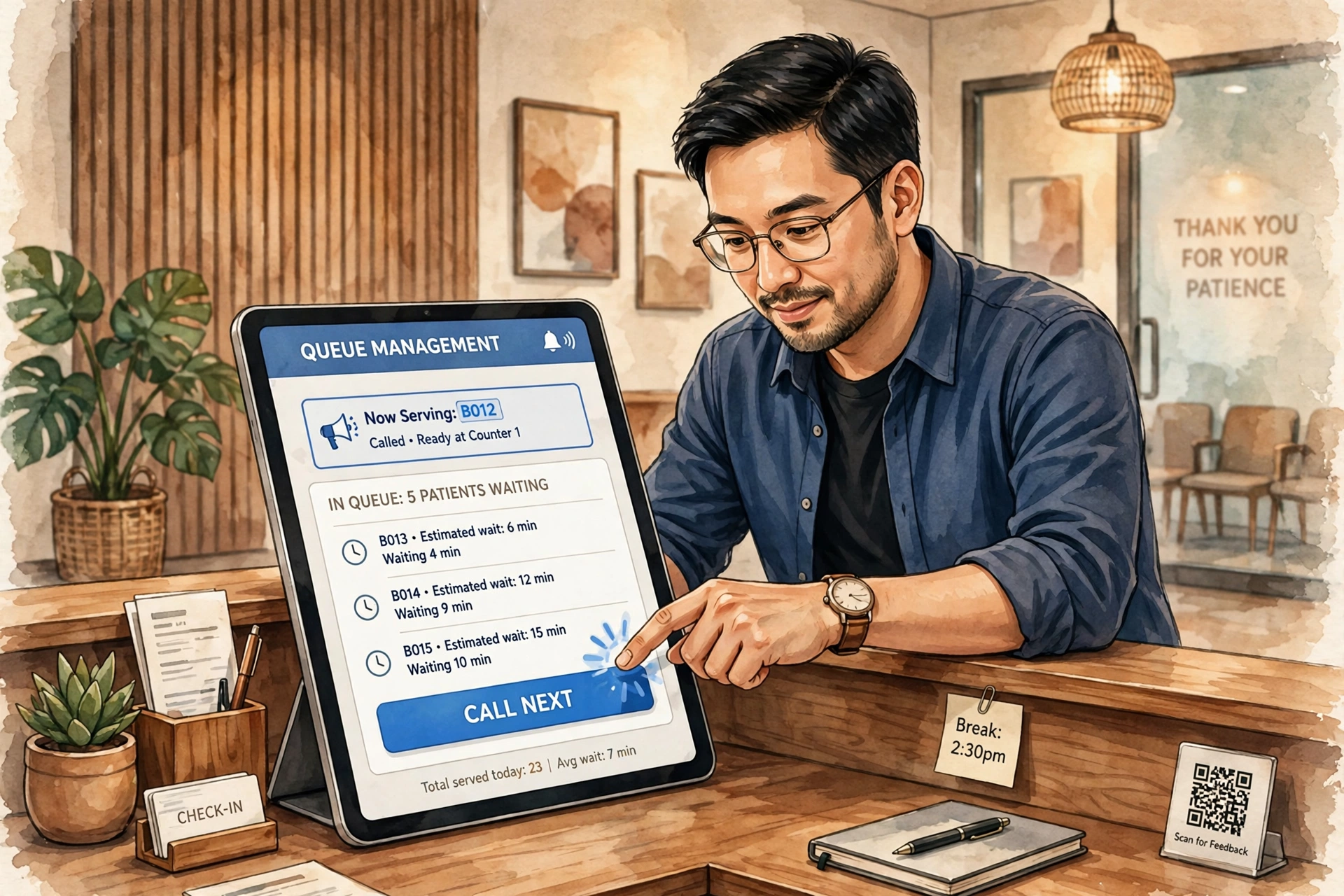
When you're ready for the next person, tap 📢 Call next. The next customer in line is notified.
You can also add walk-ins manually if someone doesn't have a phone.
Step 4: Manage your line
- ⏸ Stop accepting — temporarily block new joins (e.g., you're catching up).
- 🍽 Lunch break — pause for a break. Set daily break hours in Line settings to automate this.
- 🌙 End today's line — close the queue when you're done for the day.
Step 5: Check your insights
Go to Insights to see statistics, waiting times, and how your line is performing.
Display screen
Put a tablet or TV on the Display page (#/display) to show the current number being served. Great for waiting areas.
📱 Customer Guide
How to skip the line with Linyamo.
Step 1: Scan the QR code
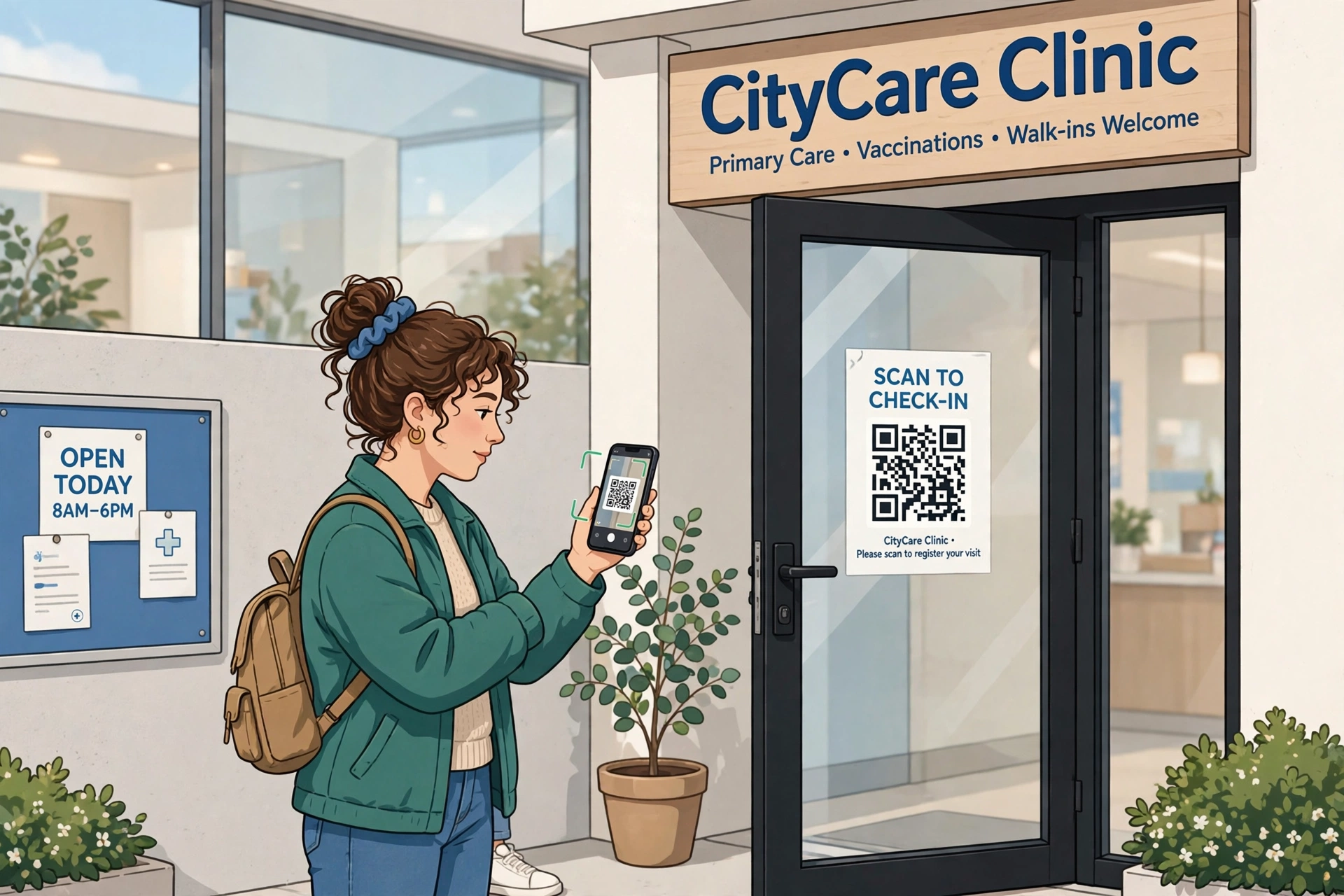
At the business, look for the Linyamo QR code (usually on the door or counter). Scan it with your phone camera.
No app download needed — it opens right in your browser.
Step 2: Join the line
You'll see the business name, logo, and address. Tap Join this line.
Your spot is saved instantly. You'll get a ticket number.
Step 3: Watch your ticket
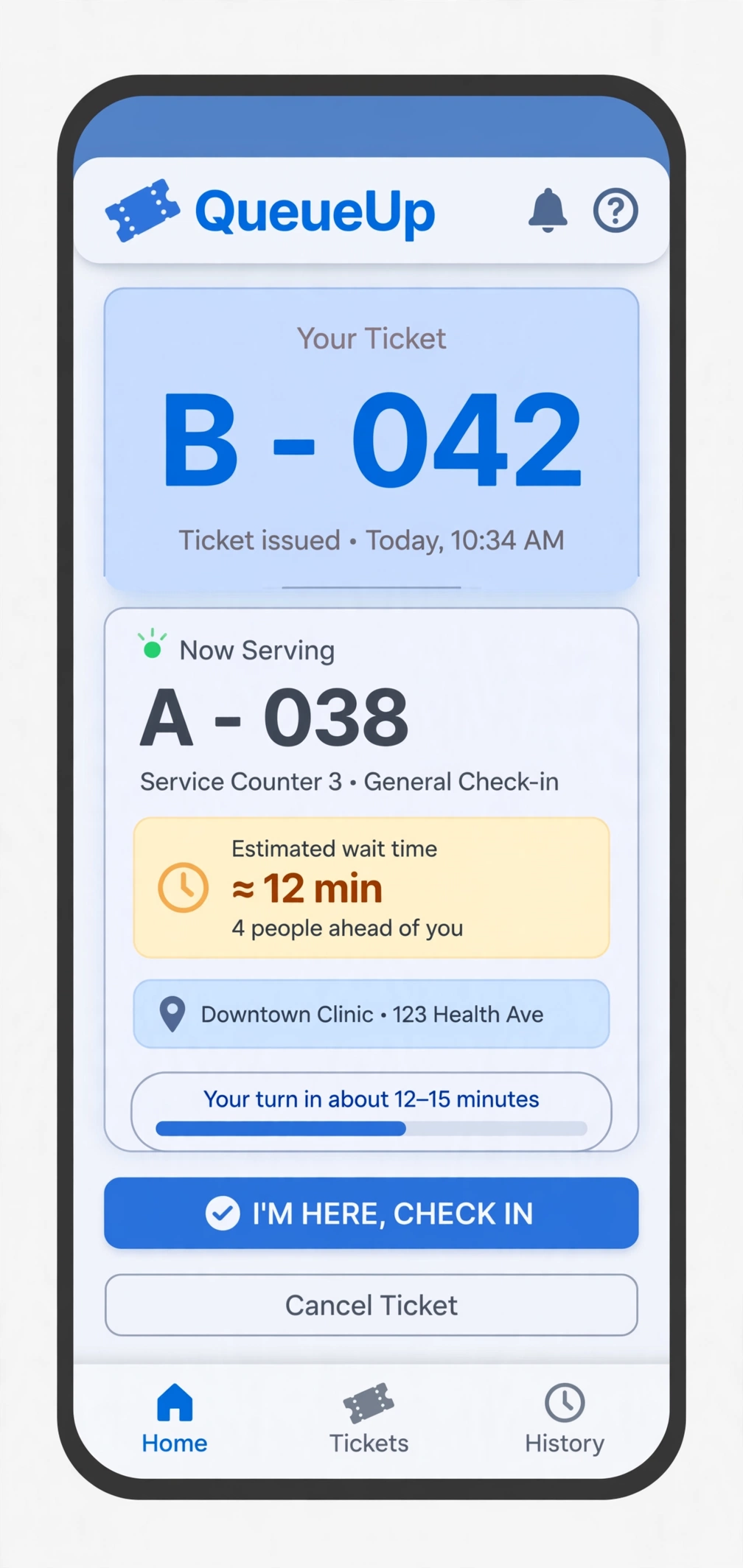
Your ticket shows:
- Now serving — the number currently being helped.
- Your number — your spot in line.
- Ahead of you — how many people are before you.
- Est. wait — how long until your turn.
The page updates automatically — no need to refresh.
Step 4: Get notified
When your turn is near, we'll alert you. Set up notifications to make sure you don't miss it.
You can also set "Notify me when I'm X spots away" on your ticket for extra warning.
Step 5: Go when called
When it's your turn, head to the counter. That's it!
Changed your mind? Tap Leave line on your ticket to give up your spot.
🔔 Getting Notifications
Follow these steps to make sure you never miss your turn.
Step 1: Allow notifications
Your browser needs permission to send you alerts when the screen is off.
- Open linyamo.com in Chrome.
- Tap the 🔒 lock icon left of the address bar.
- Tap Permissions (or Site settings).
- Tap Notifications → Allow.
Step 2: Refresh your ticket
After allowing notifications, close and reopen your ticket page. This connects your phone to our notification service.
Step 3: Customize your alerts
Go to Settings to choose how you want to be alerted:
- 📳 Vibration — your phone buzzes when your turn is near.
- 🔊 Sound — plays a chime.
- ⚡ Flash screen — flashes the screen.
ℹ️ Keep this page open for these alerts to work. To get notified with the screen off, allow notifications for this site in your browser.
Tap Test alerts on the Settings page to try them out.
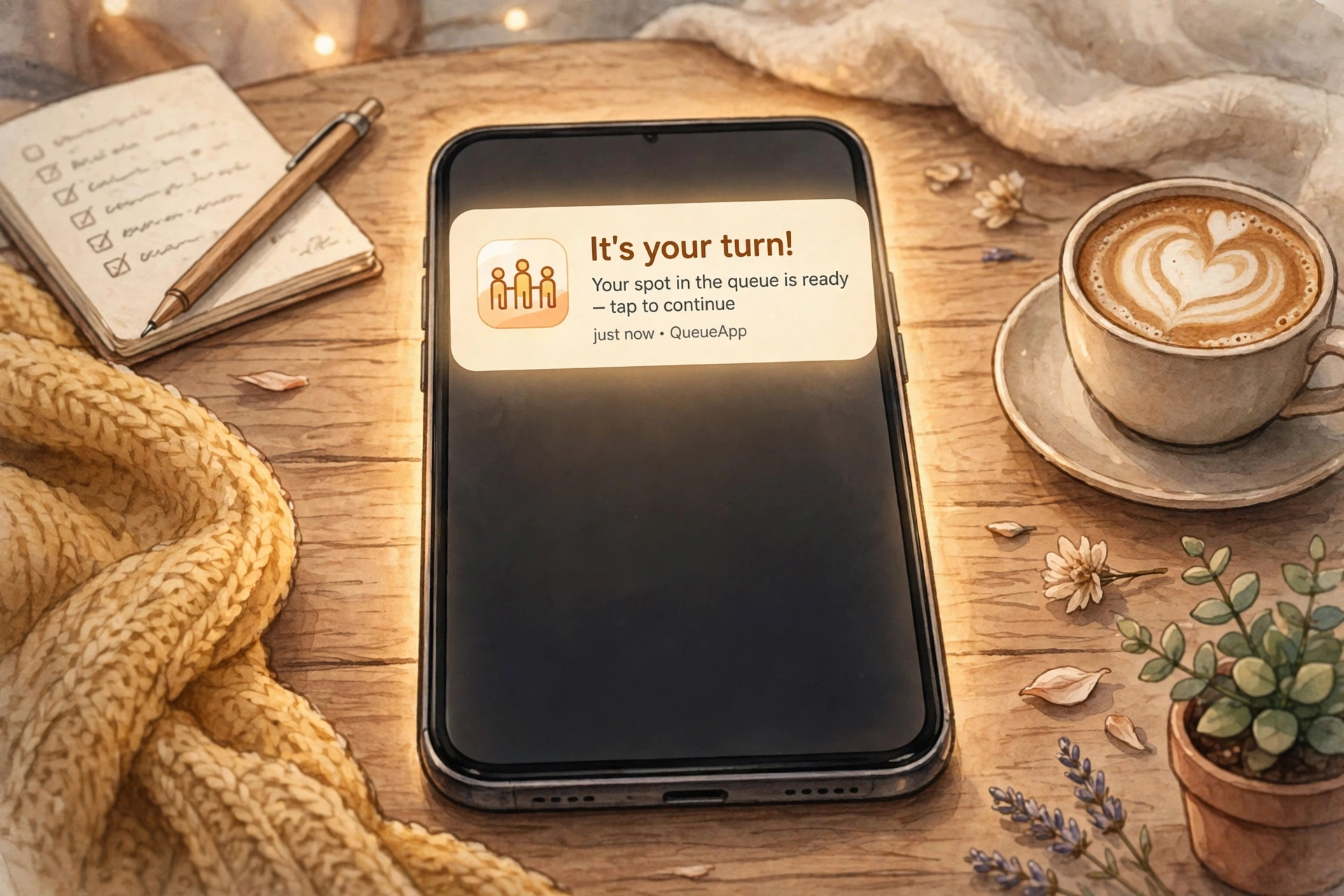
What you'll get
- When you're almost up — a heads-up to start heading over.
- When it's your turn — an alert to go to the counter.
Notifications work even with the screen off, as long as you've allowed them in Step 1.
Contact Us
Questions, feedback, or want Linyamo for your business? We'd love to hear from you.
Message sent! We'll get back to you soon. ✓
Prefer email? contact@linyamo.com
⚙️ Settings
🔔 Turn alerts
Choose how Linyamo alerts you when your turn is near.
🔔 Notify me when I'm X spots away
ℹ️ Keep this page open for these alerts to work. To get notified with the screen off, allow notifications for this site in your browser.